Managing multiple photo editing projects can be challenging for photographers and graphic designers. Clients often want attractive photo arrangements, creative backgrounds and professional collage designs within a short deadline. Creating every layout from the beginning takes time, especially when several projects are waiting.
A Photoshop collage template makes this work easier. Instead of arranging every photograph manually, designers can start with an existing PSD layout and customize it according to their requirements. This is useful for wedding photography, birthday albums, family portraits, studio promotions and social media designs.
At Freepsd360.com, designers can explore free Photoshop resources that help speed up their creative workflow. These editable templates provide a practical starting point for creating attractive photo collages without spending hours building layouts from scratch.
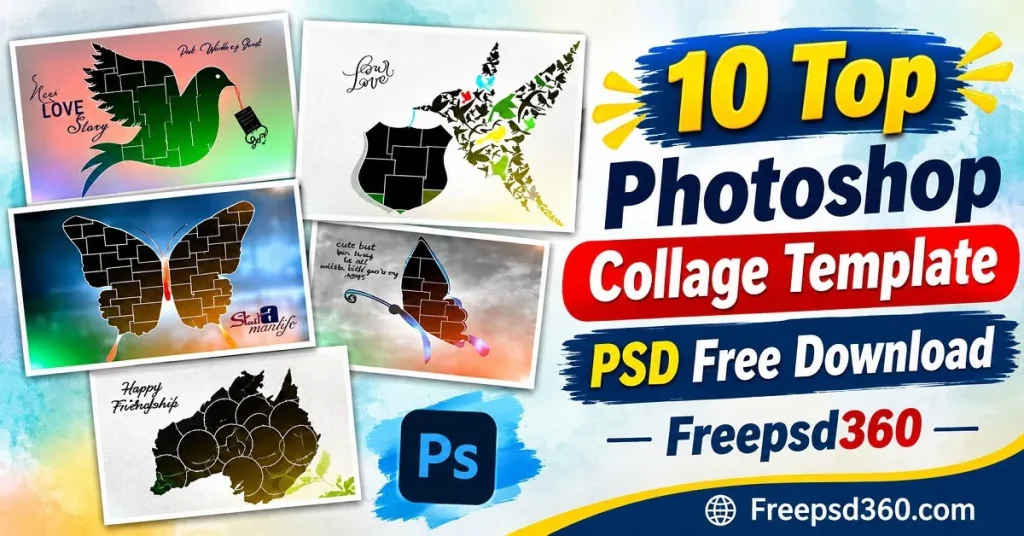
Photoshop Collage Template — File Format, Layers and Editing Features
A Photoshop collage template is a ready-made photo layout created in Adobe Photoshop. It allows designers to place multiple photographs inside one composition while maintaining an organized design structure. Most PSD templates contain separate layers that can be edited according to the project.
These files use the PSD format, which supports editable images, text, backgrounds, shapes and effects. Designers can replace sample photographs, adjust colors and customize different elements. Depending on the source file, Smart Objects and image placeholders may also be available.
For professional printing, check the document dimensions, resolution and color settings before exporting. A 300 DPI file is suitable for many print projects, while CMYK color mode can help prepare artwork for a commercial print lab. Always confirm the printer’s specifications.
#01

File Size: 43.9MB
#02
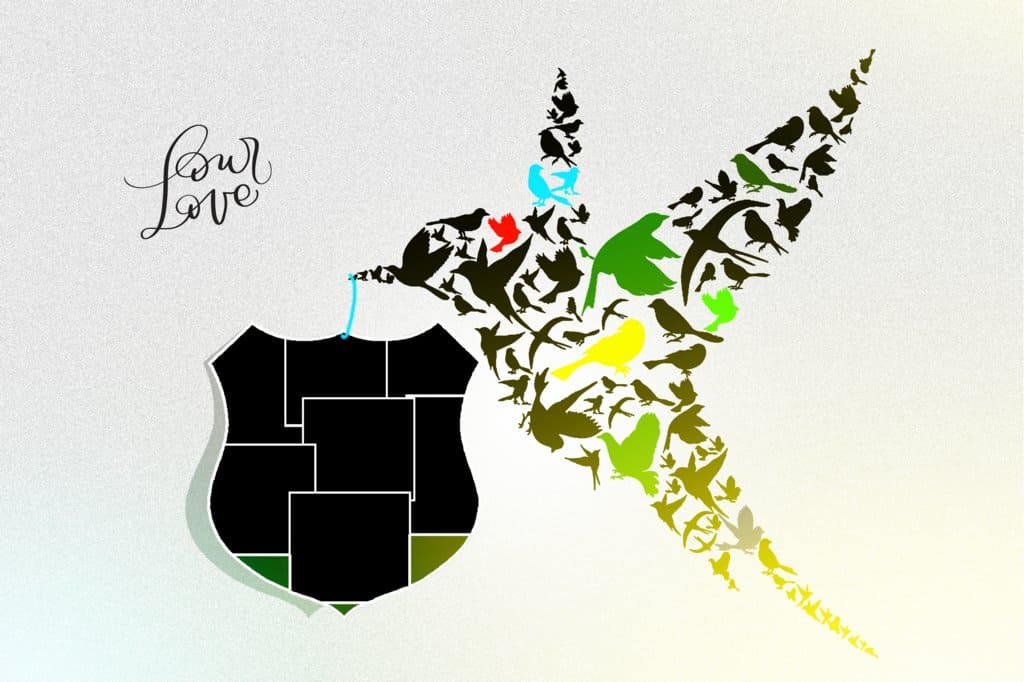
File Size: 36.2MB
#03

File Size: 33.8MB
#04

File Size: 22.2MB
#05

File Size: 17.2MB
#06

File Size: 18.4MB
#07

File Size: 19.9MB
#08
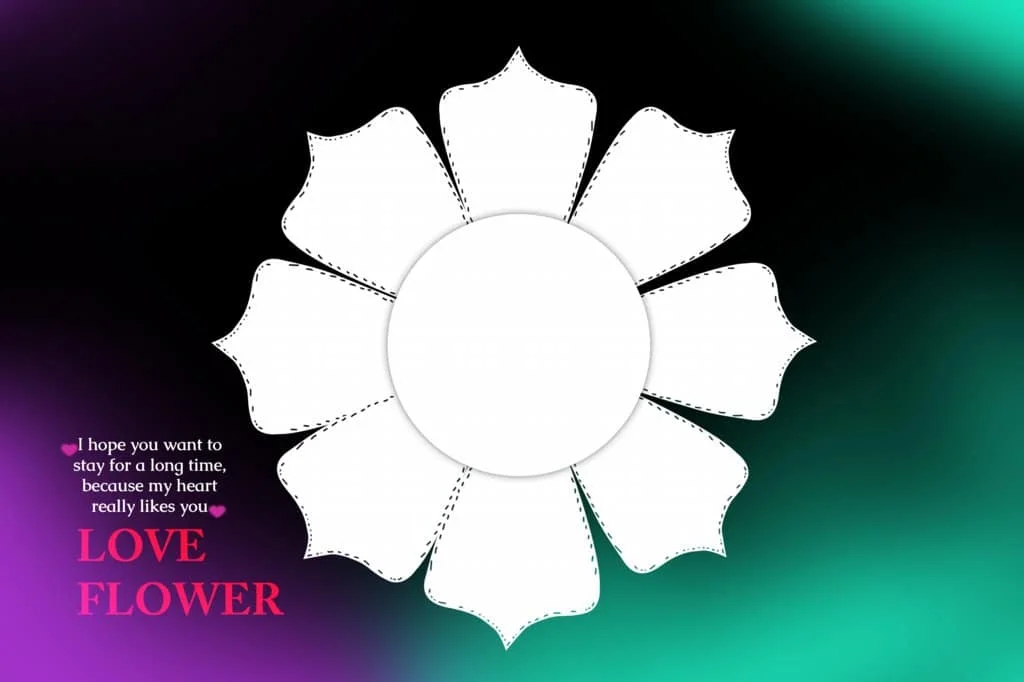
File Size: 20.1MB
#09
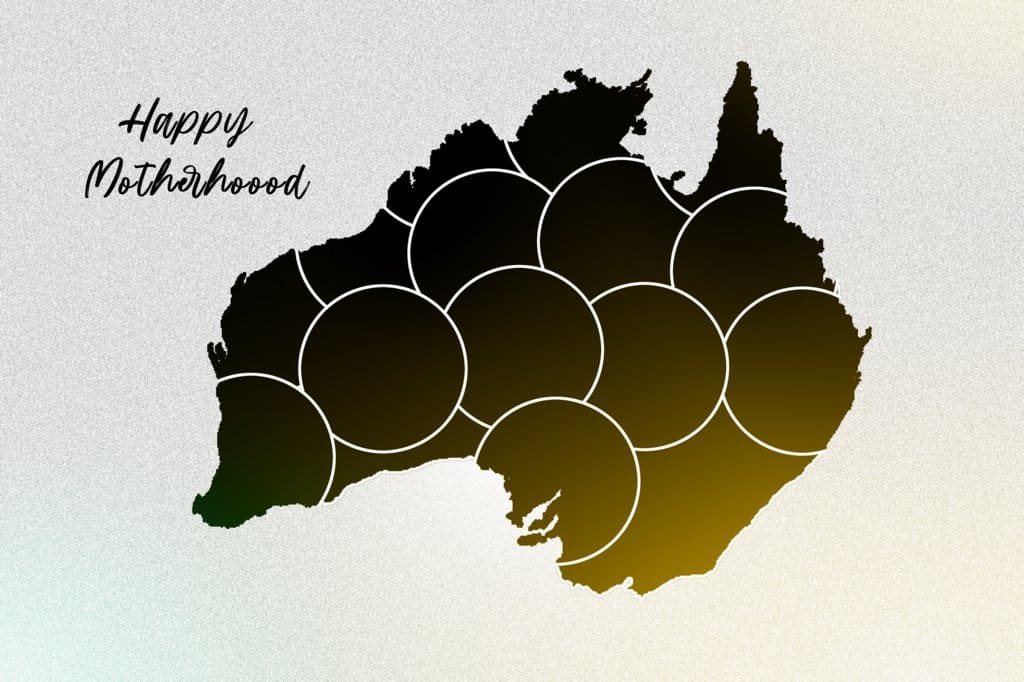
File Size: 12.1MB
#10

File Size: 29.4MB
Explore Fresh Photoshop Collage Designs on Freepsd360.com
Finding a suitable collage layout can be difficult when every client has different design preferences. Some projects need a simple photo arrangement, while others require decorative backgrounds, creative frames and multiple image placements.
Freepsd360.com provides free PSD resources for designers who want ready-made layouts for their projects. The Photoshop collage template free download collection is intended to give photographers and graphic designers a useful starting point for photo editing. Available files may include layered PSD designs, different photo arrangements and ZIP packages for convenient downloading. Check each download page for its actual dimensions, resolution and included features.
These resources can be customized for personal photography, family pictures, wedding memories, birthday celebrations and creative studio projects. Before downloading, review the file details to make sure the design matches your editing and printing requirements.
How to Use These Photoshop Collage Templates in Photoshop
Using a PSD collage layout is simple when you follow the correct editing process. These steps will help you customize the design and prepare it for your project.
Step 1: Download the PSD File. Visit Freepsd360.com and select the Photoshop collage template you want to use. Download the available ZIP package to your computer.
Step 2: Extract the ZIP Folder. Right-click the downloaded ZIP file and select Extract All. Open the extracted folder and locate the PSD file and any included image assets.
Step 3: Open the Template in Photoshop. Launch Adobe Photoshop and open the PSD document. Check the Layers panel to understand how the photographs, backgrounds, text and decorative elements are organized.
Step 4: Replace the Sample Photographs. If the template uses Smart Objects, double-click the relevant Smart Object thumbnail, place your photograph and save the Smart Object. Otherwise, place your image manually and adjust its position inside the photo frame.
Step 5: Customize Text and Colors. Change the text, background colors and decorative elements to match your project. Adjust image brightness, contrast and cropping to maintain a balanced appearance.
Step 6: Export Your Final Design. Review the complete layout before exporting. For printing, confirm the required dimensions, 300 DPI resolution, color mode and bleed settings with your print provider. Save a layered PSD backup before creating the final print-ready file.
Build Better Design Skills by Studying PSD Collage Layouts
Ready-made PSD files are not only useful for completing projects quickly. They can also help new designers understand how professional photo compositions are created. By opening a layered Photoshop collage template, beginners can study the placement of images, spacing, borders, typography and background elements.
For example, a designer working on an Indian wedding project can study how photographs from the Mehendi, Sangeet, Baraat and reception are arranged. This helps develop an understanding of visual balance and storytelling through images.
Experimenting with different layouts also improves practical Photoshop skills. You can learn how masks, clipping techniques, Smart Objects and adjustment layers work together. Instead of simply using a finished design, examine its layer structure and try making your own variations.
Tips for the Best Print Results
– Maintain 300 DPI Resolution: Check the document resolution before sending your design for printing. Avoid enlarging small photographs too much because this can reduce image quality.
– Choose the Correct CMYK Color Mode: Ask your print lab which color profile it requires. Converting from RGB to CMYK can change some colors, so check the final appearance before printing.
– Keep Proper Bleed Margins: Leave around 3–5 mm of bleed when required by your printing provider. Keep important faces and text away from cutting edges.
– Save a Layered PSD Backup: Always preserve the original editable Photoshop file. It allows you to correct photographs, change text or adjust colors without rebuilding the entire composition.
Frequently Asked Questions
Are these Photoshop collage templates really free?
The collection featured on Freepsd360.com is intended for free PSD downloads. Check the individual download page for any access conditions and applicable license information.
What software is needed to edit Photoshop collage templates?
Adobe Photoshop is the recommended software for editing PSD files. It allows you to modify layers, replace photographs, customize text and adjust design elements.
Can I use these collage templates for paid client projects?
Usage depends on the license attached to each template. Check the individual file’s terms before using it in commercial projects or delivering it to paying clients.
Can I replace multiple photos in one Photoshop collage template?
Yes. You can replace photographs in individual image layers or Smart Objects, depending on how the PSD file is built. Adjust cropping and positioning to fit each frame.
Are Photoshop collage templates suitable for large photo prints?
They can be suitable if the original document has sufficient dimensions and resolution. Check the PSD properties and confirm the printing requirements before producing large prints.
Conclusion
A Photoshop collage template is a useful resource for photographers, graphic designers and photo studio professionals. Editable PSD layers make it easier to arrange multiple photographs, customize backgrounds and create attractive compositions. These ready-made layouts can also help beginners understand professional photo editing techniques.
Visit Freepsd360.com to explore the latest PSD resources and choose a design that fits your next creative project. Get your Photoshop collage template free download, customize the layout with your own photographs and prepare a polished design for personal or professional use. Start creating better photo compositions while saving valuable editing time.
You might also enjoy these free resources on Freepsd360.com: